Tutorial Video
Activate your Copy Trading Funded Account
Step 1
Funded Accounts
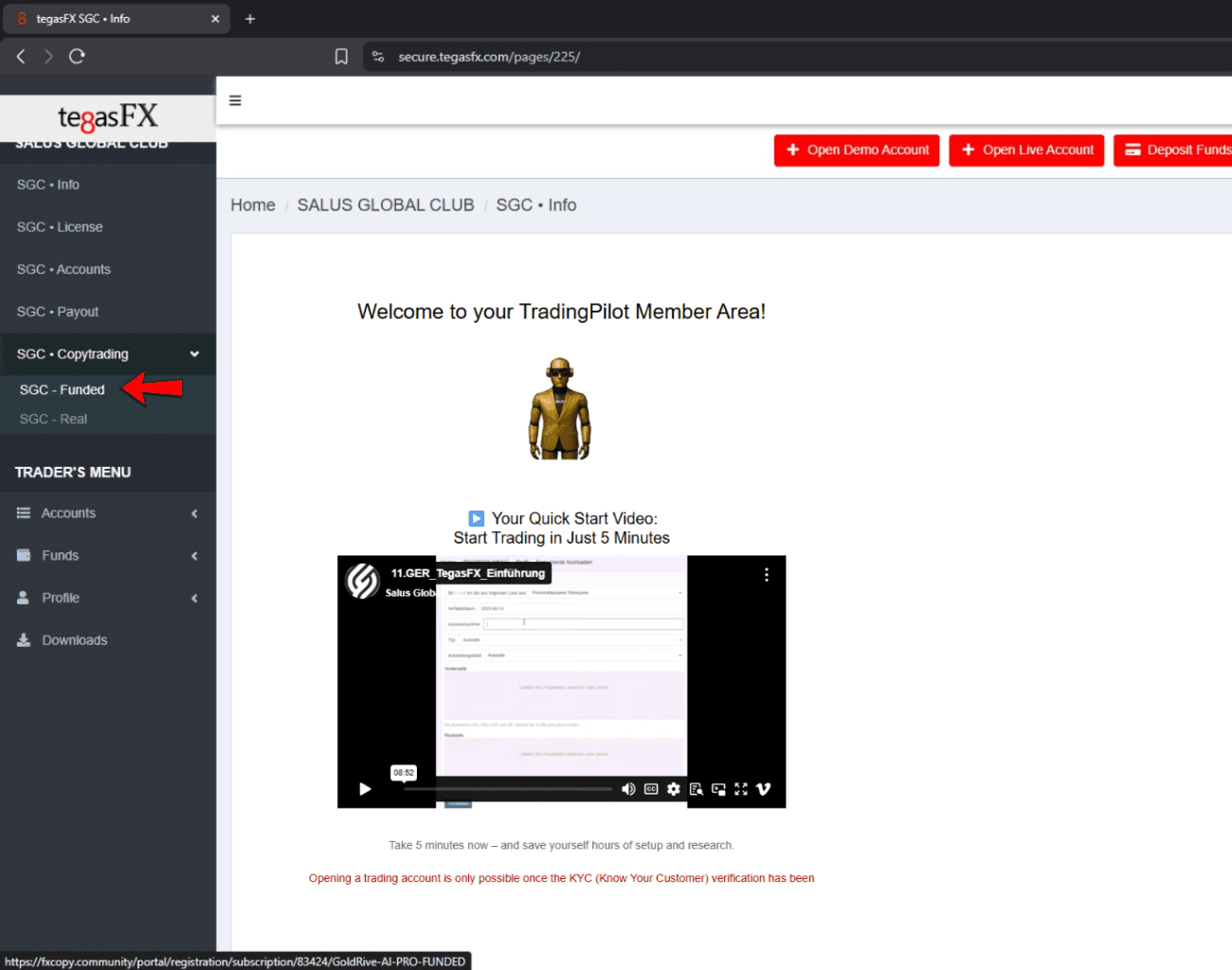
1️⃣ Click: Copy trading and then "Funded".
2️⃣ Log in using the credentials we sent to your email when you registered for your funded account.Step 1
Funded Accounts
1️⃣ Click: Copy trading and then "Funded".
2️⃣ Log in using the credentials we sent to your email when you registered for your funded account.Step 1
Funded Accounts
1️⃣ Click: Copy trading and then "Funded".
2️⃣ Log in using the credentials we sent to your email when you registered for your funded account.Step 1
Funded Accounts
1️⃣ Click: Copy trading and then "Funded".
2️⃣ Log in using the credentials we sent to your email when you registered for your funded account.
Step 2
Open your own Funded Account
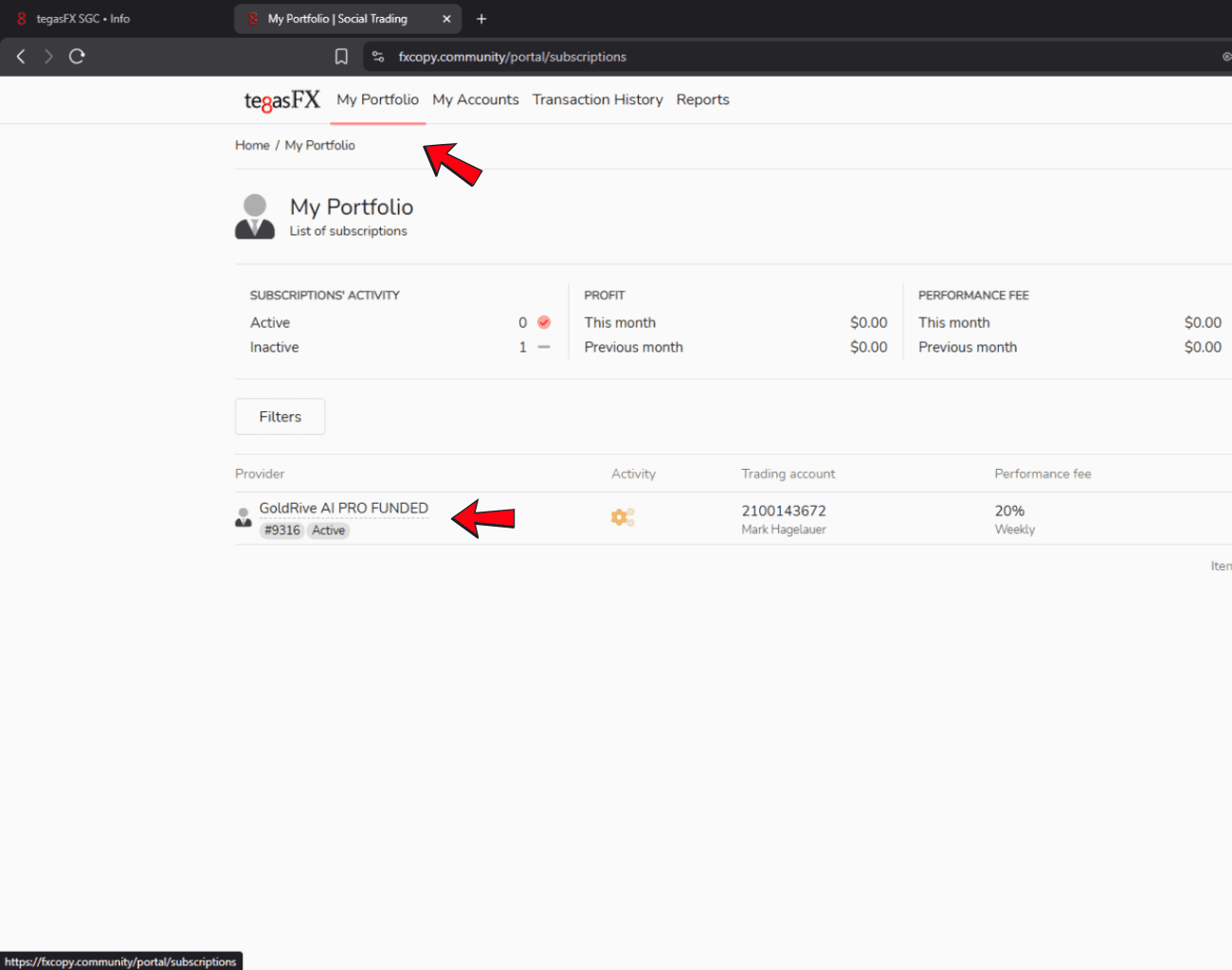
1️⃣ Click on "My Portfolio"
2️⃣ Click on your own "GoldRive AI PRO FUNDED" AccountStep 2
Open your own Funded Account
1️⃣ Click on "My Portfolio"
2️⃣ Click on your own "GoldRive AI PRO FUNDED" AccountStep 2
Open your own Funded Account
1️⃣ Click on "My Portfolio"
2️⃣ Click on your own "GoldRive AI PRO FUNDED" AccountStep 2
Open your own Funded Account
1️⃣ Click on "My Portfolio"
2️⃣ Click on your own "GoldRive AI PRO FUNDED" Account
Step 3
Activate Copytrading
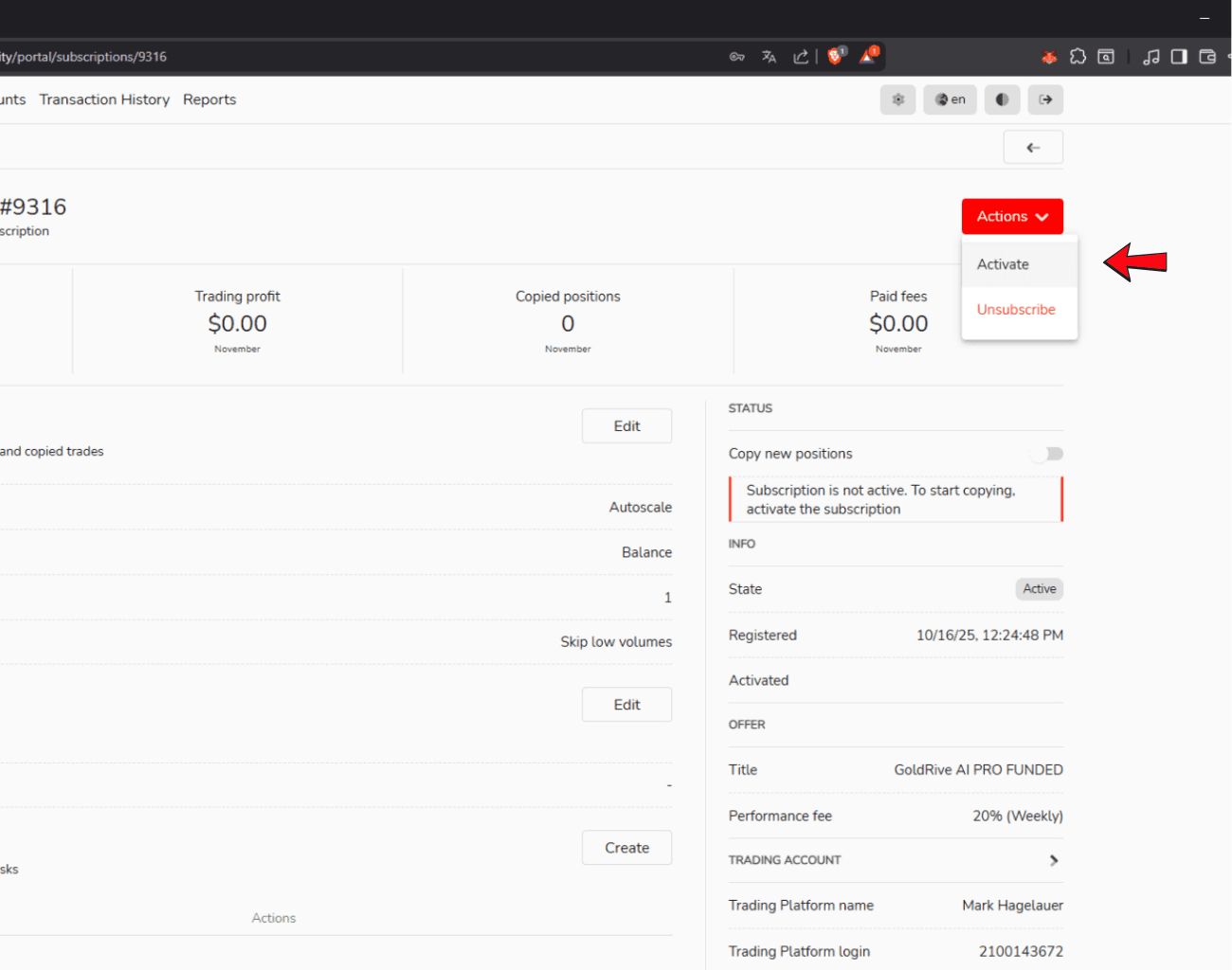
1️⃣ Click on "Actions" and then Activate (Your copy trading will start immediately as soon as it is activated).
2️⃣ If you want to stop copy trading, simply click “suspend.”Step 3
Activate Copytrading
1️⃣ Click on "Actions" and then Activate (Your copy trading will start immediately as soon as it is activated).
2️⃣ If you want to stop copy trading, simply click “suspend.”Step 3
Activate Copytrading
1️⃣ Click on "Actions" and then Activate (Your copy trading will start immediately as soon as it is activated).
2️⃣ If you want to stop copy trading, simply click “suspend.”Step 3
Activate Copytrading
1️⃣ Click on "Actions" and then Activate (Your copy trading will start immediately as soon as it is activated).
2️⃣ If you want to stop copy trading, simply click “suspend.”
Step 4
Accounts Overview
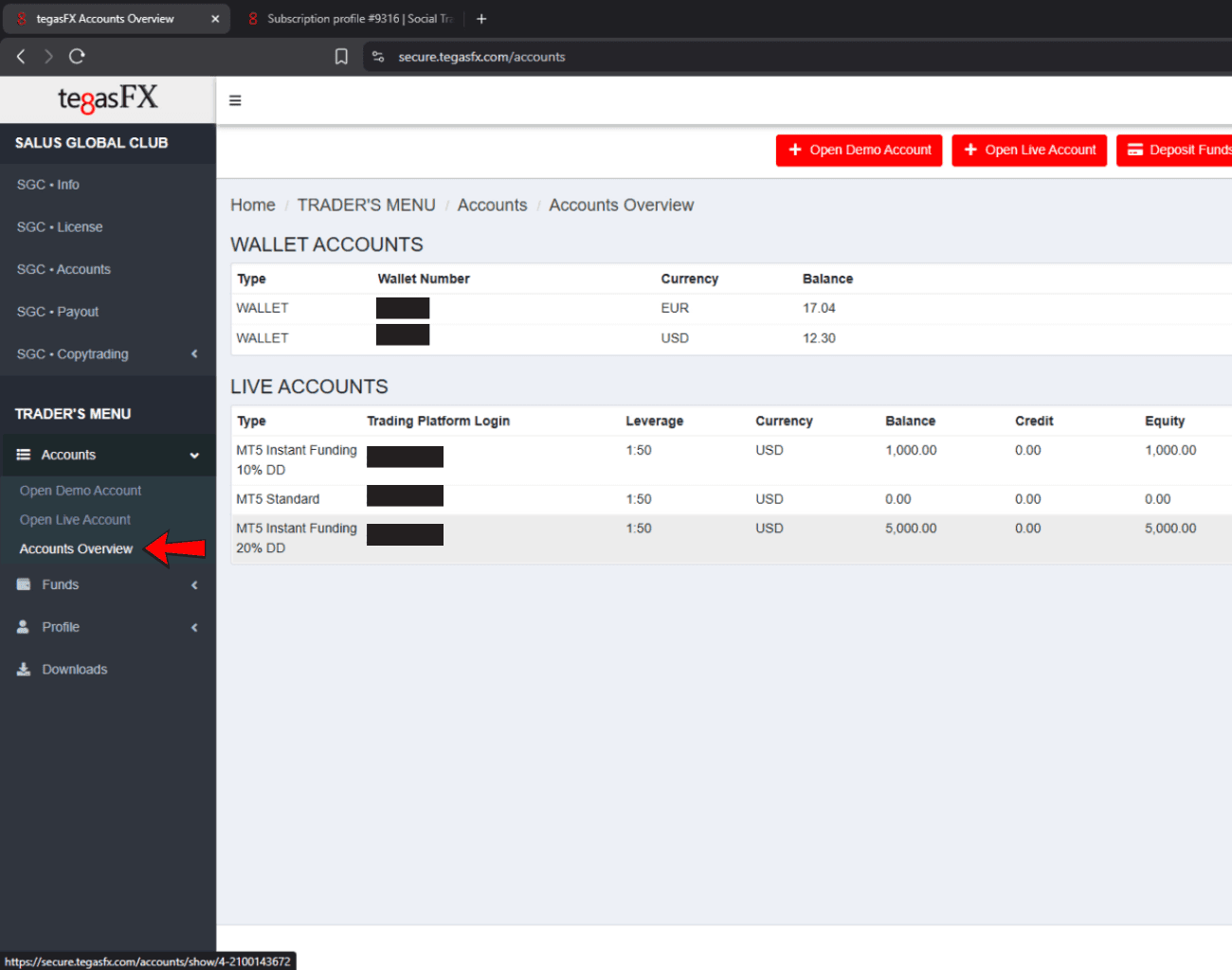
In the “Account Overview” section, you will see all your live accounts. Under “View” within your account, you can also view all the details about the selected account.

Step 4
Accounts Overview
In the “Account Overview” section, you will see all your live accounts. Under “View” within your account, you can also view all the details about the selected account.
Step 4
Accounts Overview
In the “Account Overview” section, you will see all your live accounts. Under “View” within your account, you can also view all the details about the selected account.
Step 4
Accounts Overview
In the “Account Overview” section, you will see all your live accounts. Under “View” within your account, you can also view all the details about the selected account.